
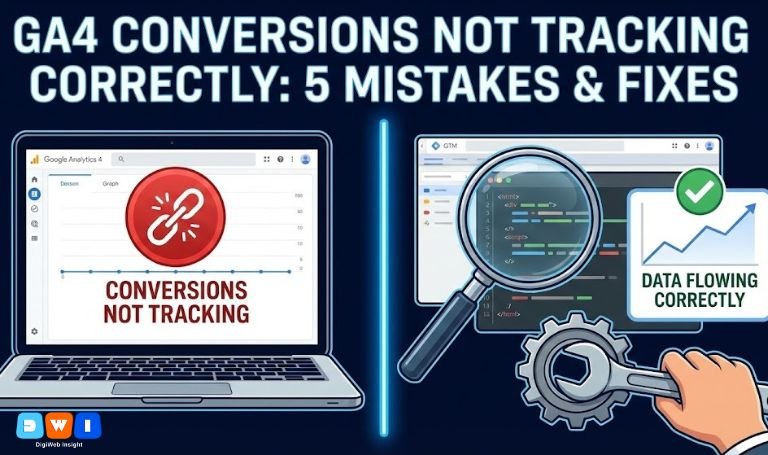
Nothing is more frustrating for a marketer than logging into Google Analytics 4 and seeing zeros where sales should be.
If you are noticing that your GA4 conversions not tracking correctly, you are facing a critical blind spot. In 2025, data is the lifeblood of decision-making. If your conversion numbers are off, your ROI calculations are wrong, your ad spend is inefficient, and your strategy is flying blind.
Unlike Universal Analytics, GA4 operates on an event-based model. While this offers more flexibility, it also introduces complexity. A simple configuration error in Google Tag Manager (GTM) or a misunderstanding of “Data Thresholding” can cause your reports to flatline.
Here is why your GA4 conversions not tracking correctly is happening and the 5 specific fixes you need to implement immediately.
Why Are My Conversions Missing?
Before diving into the code, you must understand that GA4 processes data differently than its predecessor.
- Latency: GA4 data is not real-time. Conversions can take up to 24-48 hours to appear in standard reports.
- Thresholding: If you have Google Signals enabled but low traffic, Google may hide data to protect user privacy.
- Event Modeling: Every interaction is an “event.” If the event isn’t defined properly, the conversion doesn’t exist.
If you have waited 48 hours and the data is still wrong, one of the following 5 mistakes is likely the culprit.
5 Reasons GA4 Conversions Are Not Tracking Correctly
1. You Forgot to “Mark as Conversion”
This is the most common and easiest error to fix. In GA4, creating an event doesn’t automatically make it a conversion. You must explicitly tell Google to treat it as a Key Event (formerly known as Conversions).
- The Fix: Go to Admin > Data Display > Key Events. Ensure the toggle switch is “On” for the specific event you want to track.
2. Google Tag Manager (GTM) Triggers Are Broken
If you manage tags through GTM, a trigger misfire is often why GA4 conversions not tracking correctly. A changed Page URL, a new button ID, or a website redesign can break your triggers instantly.
- The Fix: Use the GTM “Preview” mode. Simulate a conversion on your site. If the tag doesn’t fire in the debug window, the issue is with your trigger logic, not GA4.
- Pro Tip: If you recently updated your site, you might need professional web design development support to ensure your data layer is communicating effectively with GTM.
3. Data Thresholding is Hiding Your Data
In 2025, privacy is paramount. If you have “Google Signals” turned on to track cross-device users, GA4 will hide rows of data if the user count is too low to prevent you from identifying individuals.
- The Symptom: You see an orange warning icon in your report header.
- The Fix: You cannot “turn off” thresholding without losing demographic data, but you can switch your “Reporting Identity” to Device-based temporarily to see the raw numbers.
4. Duplicate Counts & Session ID Errors
Are your numbers inflated? Sometimes GA4 conversions not tracking correctly means tracking too much. If a user refreshes the “Thank You” page, GA4 might count it as a second conversion if you haven’t configured distinct transaction IDs.
- The Fix: Implement a unique
transaction_idfor every purchase. GA4 will automatically de-duplicate events with the same ID.
5. Improper Cross-Domain Tracking
If your user moves from yoursite.com to booking-engine.com to complete a purchase, GA4 might see this as a new session and lose the original traffic source.
- The Fix: Configure Cross-Domain tracking in your Data Stream settings. Ensure both domains are listed so the session cookie carries over.
How to Audit Your Setup
If you are still unsure why GA4 conversions not tracking correctly, follow these steps:
- Use DebugView: Go to Admin > DebugView in GA4. Navigate your site in a separate tab. You should see events pop up in real-time. If you don’t, the tag isn’t firing.
- Check Referral Exclusions: Ensure payment gateways (like PayPal or Stripe) are added to your “List of Unwanted Referrals.” Otherwise, your conversions will be attributed to
paypal.cominstead of your SEO or Ad efforts. - Verify with External Tools: Use the Google Analytics Debugger Chrome extension. It prints the data layer to your browser console, allowing you to see exactly what data is being sent to Google.
The Cost of Bad Data
Ignoring these errors is costly. When GA4 conversions not tracking correctly, your ad algorithms can’t optimize. You might be pausing high-performing ads because you think they aren’t working, or pouring money into losing campaigns.
- PPC Impact: Smart Bidding requires accurate data. If the feed is broken, the algorithm fails. Before scaling your budget, verify your tracking with a pay per click PPC marketing expert.
- SEO Impact: You need to know which blog posts drive leads. Without accurate conversion mapping, your content strategy is a guess.
Conclusion
Fixing issues where GA4 conversions not tracking correctly is rarely about reinventing the wheel. It usually comes down to checking your switches, verifying your GTM triggers, and understanding data privacy thresholds.
Don’t let bad data dictate your 2025 strategy. Audit your tags, test your events, and trust the numbers again.
Need a technical deep dive? If you can’t find the break in your data chain, let the experts at DigiWebInsight run a full analytics audit for you today. We also offer comprehensive affordable SEO agency USA services to ensure your organic traffic converts as well as it ranks.